Relational databases
SQL Server Installation
This guide covers installing SQL Server Express and SQL Server Management Studio (SSMS) on Windows, and how to start and stop services using the Configuration Manager.
SQL Server Express Installation
- Download the setup file from https://www.microsoft.com/en-us/download/confirmation.aspx?id=101064
- Start the installation and choose Custom

- Choose the folder (default is ok)
- Choose New SQL Server stand-alone ...

- Check that all operations are passed and choose Next

- Make the choices described in the image below

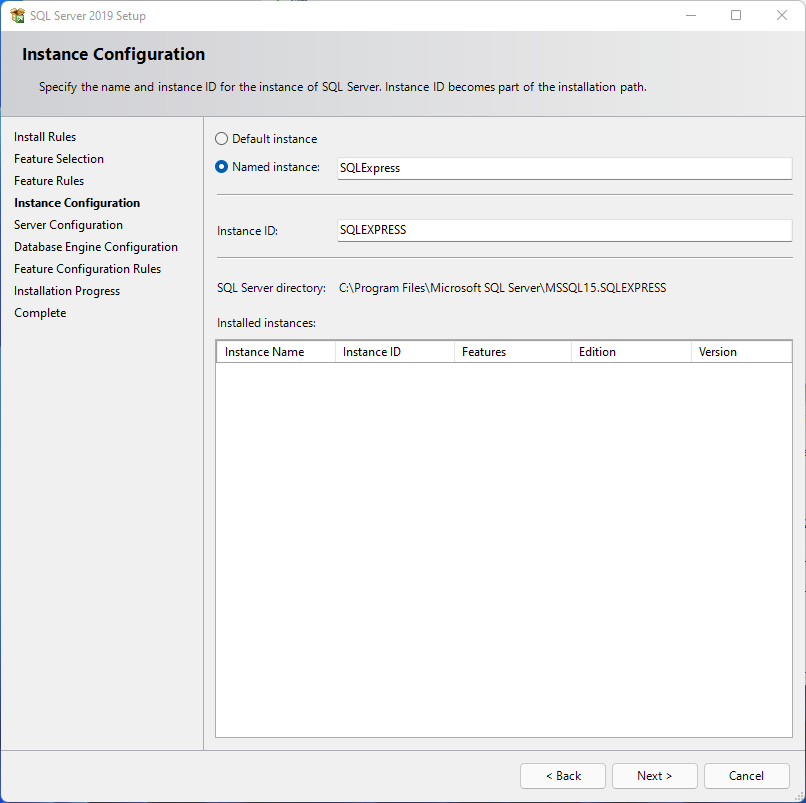
- You can accept the suggested name for your server
- Choose Manual for all service startup options

- Choose Mixed Mode and set a password for the SQL Server administrator account sa

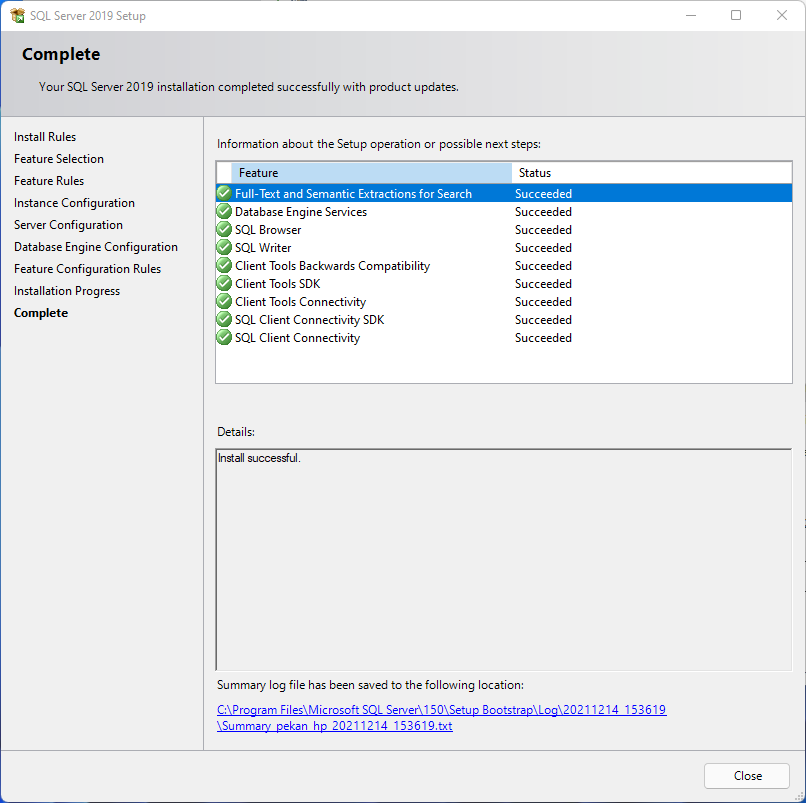
- Installation is complete — you can close the installer
SQL Server Management Studio Installation
- After installing SQL Server, you will be back on the startup screen shown below. Choose Install SQL Server Management Tools.
- You will be redirected to a web page. Download SQL Server Management Studio (SSMS).
- Run the downloaded setup file and click Install.
